Содержание
Инстаграм - популярная соцсеть для обмена фото и видео. Если нет смартфона или вы предпочитаете компьютер - расскажем, как пользоваться Инстаграмом на ПК.
Инстаграм для ПК предлагает удобный интерфейс и больше возможностей для редактирования и публикации. Зарегистрируйте аккаунт, если его ещё нет - им можно пользоваться и на телефоне, и на компьютере.
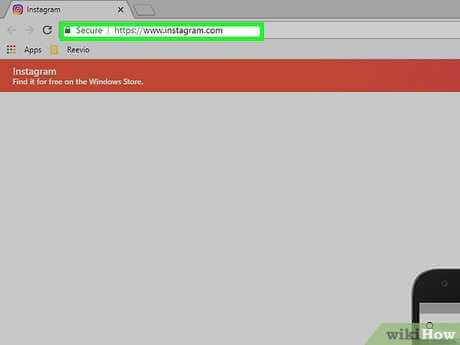
Самый простой способ - веб-версия. Откройте браузер и введите instagram.com. Интерфейс похож на приложение, но адаптирован под ПК.
В веб-версии есть ограничения: нельзя снимать фото и видео прямо в Инстаграме. Для полного функционала существуют специальные приложения и программы для ПК.
Возможности Инстаграма на ПК
Основные возможности:
- Загрузка фото и видео - на ПК удобнее и быстрее.
- Редактирование фото - яркость, контраст, фильтры и эффекты.
- Просмотр историй и добавление в свои.
- Комментирование и лайки - удобнее с клавиатурой и мышью.
- Отправка сообщений другим пользователям.
- Уведомления о комментариях, лайках и подписчиках на рабочий стол.
- Поиск и отслеживание аккаунтов с помощью фильтров.
- Просмотр ленты и профилей, быстрый доступ к контенту.
Использование Инстаграма на ПК расширяет возможности и делает работу удобнее. Вы быстрее загружаете, редактируете и просматриваете контент.
Загрузка фото и видео
Несколько способов загрузки на компьютере.
Через официальный сайт: откройте браузер → instagram.com → войдите → иконка камеры внизу → выберите файл → подпись и фильтры → «Опубликовать». Либо используйте программы (Gramblr, Flume и др.): установите приложение, выберите фото/видео, добавьте подпись и опубликуйте.
Просмотр историй
Зайдите на instagram.com и войдите. Истории - вверху главной. Листайте стрелками или кликом. Для полного экрана - клик или Enter. Можно отправить сообщение, лайк или сохранить. Истории доступны 24 часа.
Отправка сообщений
Войдите на сайте Инстаграма. Найдите пользователя через поиск (имя или ник). Откройте его профиль → значок сообщений → введите текст и нажмите «Отправить». Часть функций (видеозвонки и др.) может быть недоступна на ПК - для полного функционала используйте приложение.
Как пользоваться Инстаграмом на ПК
- Веб-версия: откройте www.instagram.com в браузере и войдите.
- Специальные программы для ПК - планирование постов, скачивание фото и др.
- Эмуляторы Android (BlueStacks, NoxPlayer, Andy) - запуск мобильной версии Инстаграма на ПК.
Выберите удобный способ и пользуйтесь Инстаграмом с компьютера.
Использование официального сайта
Откройте браузер → www.instagram.com → войдите или создайте аккаунт. После входа доступны лента, лайки, комментарии, публикации. На сайте есть редактирование фото, фильтры, настройки аккаунта, управление подписками и поиск.
Использование эмуляторов

Эмуляторы (BlueStacks, NoxPlayer, Andy) позволяют запускать мобильную ОС на ПК и использовать приложение Инстаграм на большом экране. Скачайте с официального сайта, установите, войдите в аккаунт. Удобно для управления с клавиатуры и мыши.
Использование специализированных приложений
InstaPic (Windows 10) - просмотр, комментарии, лайки, загрузка фото. Gramblr (Win/Mac/Linux) - загрузка фото и видео с ПК до 50 МБ. Flume (Mac) - просмотр и загрузка, уведомления, несколько аккаунтов. Hootsuite - планирование постов, аналитика, управление комментариями и сообщениями, поддержка нескольких соцсетей.
Видео:
FAQ:
Можно ли использовать Инстаграм на компьютере?
Да. Есть несколько способов: веб-сайт, программы, эмуляторы.
Как скачать Инстаграм на компьютер?
Зайдите на Instagram.com, введите данные для входа или создайте аккаунт. Отдельно «скачивать» приложение не нужно - работайте через браузер.
Как добавить фото на Инстаграм через компьютер?
Войдите в аккаунт на сайте, нажмите «Добавить публикацию» (иконка камеры), выберите фото на компьютере, добавьте подпись и опубликуйте.
Можно ли редактировать фото на компьютере перед публикацией?
Да. После выбора фото доступны фильтры и настройки яркости, контраста и др.
Можно ли просматривать Истории на компьютере?
Да. Зайдите на свою страницу, вверху отображаются Истории - нажмите для просмотра.
Как пользоваться Инстаграмом на компьютере?
Зайдите на instagram.com и войдите в аккаунт. Доступны лента, лайки, комментарии, сообщения и загрузка фото.
Какие функции Инстаграма доступны на компьютере?
Практически те же, что на телефоне: просмотр фото и видео, лайки, комментарии, сообщения, фильтры и редактирование, загрузка своих фото и видео.