Содержание
- Где найти Директ в Инстаграме?
- Как написать в Директ?
- Как прикрепить ссылку в Direct?
- Отправка сообщений с компьютера
- Как отправить голосовое сообщение?
- Настройка уведомлений Директа в Инстаграме
- Как начать видеочат?
- Быстрые ответы в Директе
- Ограничения в Директе
- Директ в Инстаграме для бизнеса
- Видео
В 5-ой версии Instagram появилась функция – Direct. Несмотря на её долгое существование, многие не знают как им пользоваться. Он удобен, хорошо продуман разработчиками, обладает простым интерфейсом, с которым справится новичок. Direct – вкладка, всегда находящаяся перед глазами. Создана для общения с другими пользователями соцсети. С помощью этой функции можно:
- отправлять сообщения;
- высылать документы;
- обмениваться фотографиями, видео, сторисами, публикациями;
- оставлять реакции на истории;
- создать закрытый групповой чат.
С помощью Директа можно сохранять контент, общаться с друзьями, клиентами и т.д. Единственное, есть некоторые ограничения, которые рассмотрим ниже.
Где найти Директ в Инстаграме?
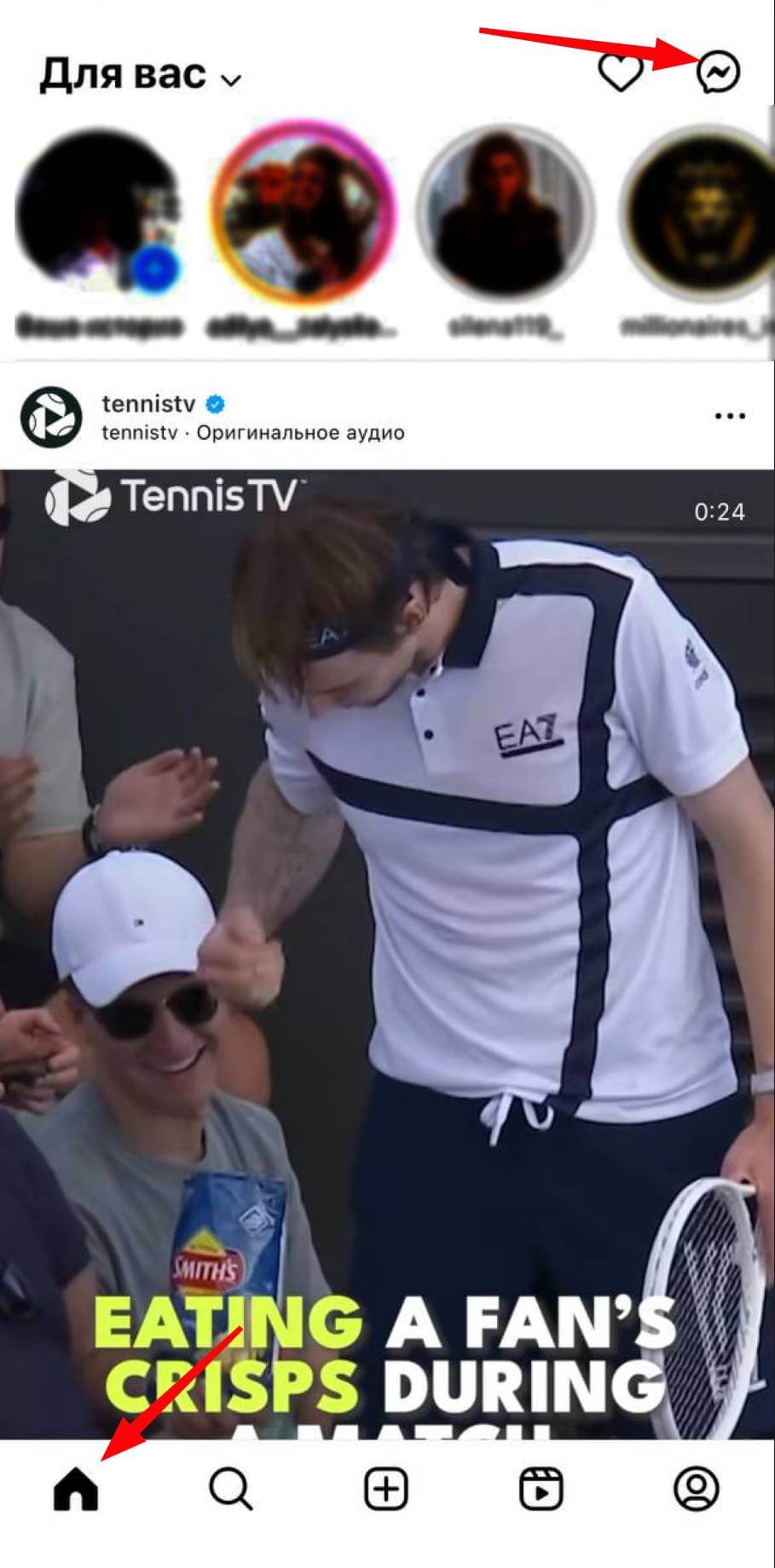
Разработчики приложения Instagram придерживаются минимализма, стараются не перегружать интерфейс различными значками. Из-за этого у многих пользователей возникают сложности с поиском Директа. Его вкладка расположена в правом верхнем углу возле значка в виде сердечка. Нажав на него, Вы автоматически окажетесь в Direct-е, сможете воспользоваться его функциями.
Как написать в Директ?
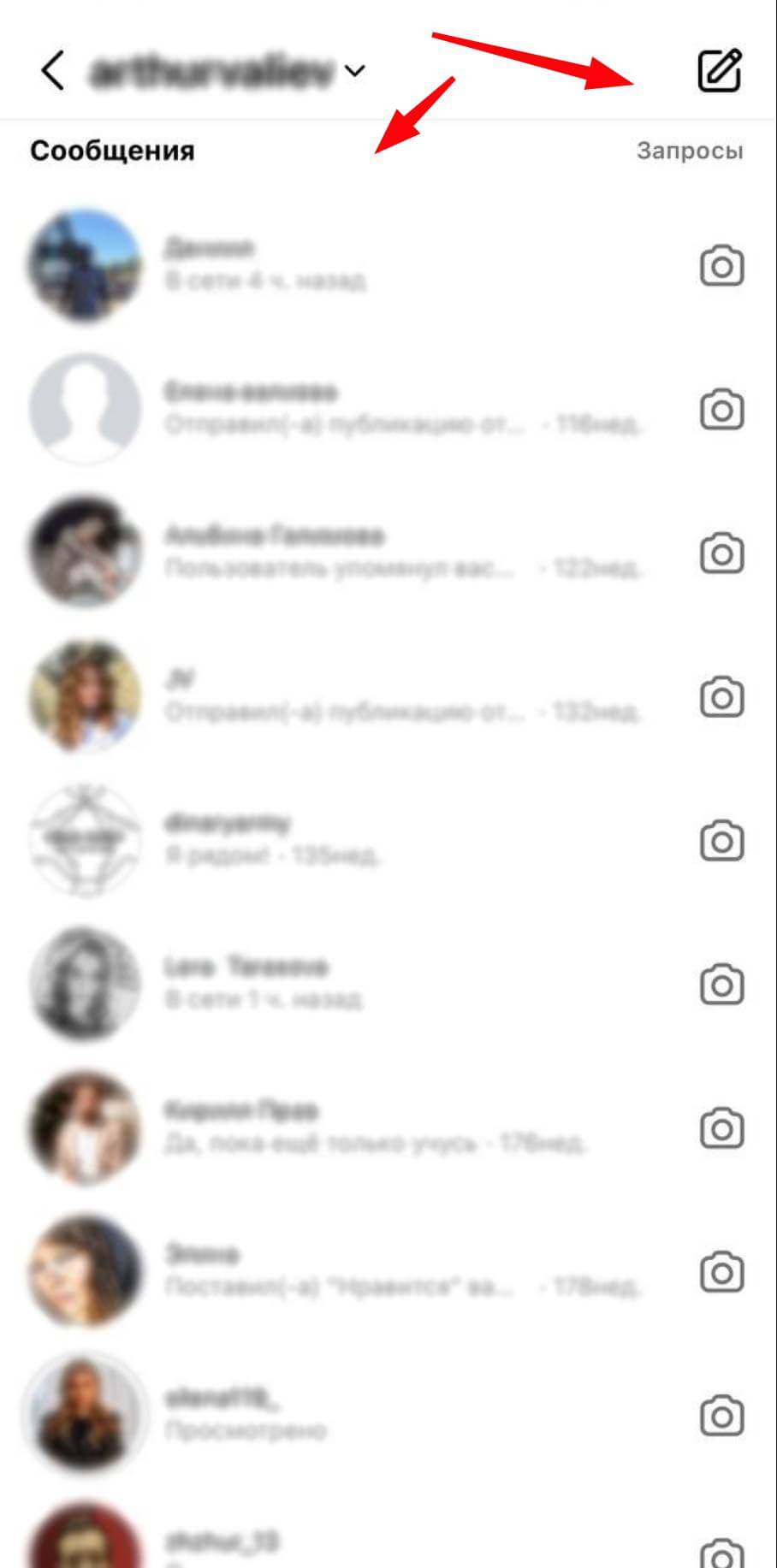
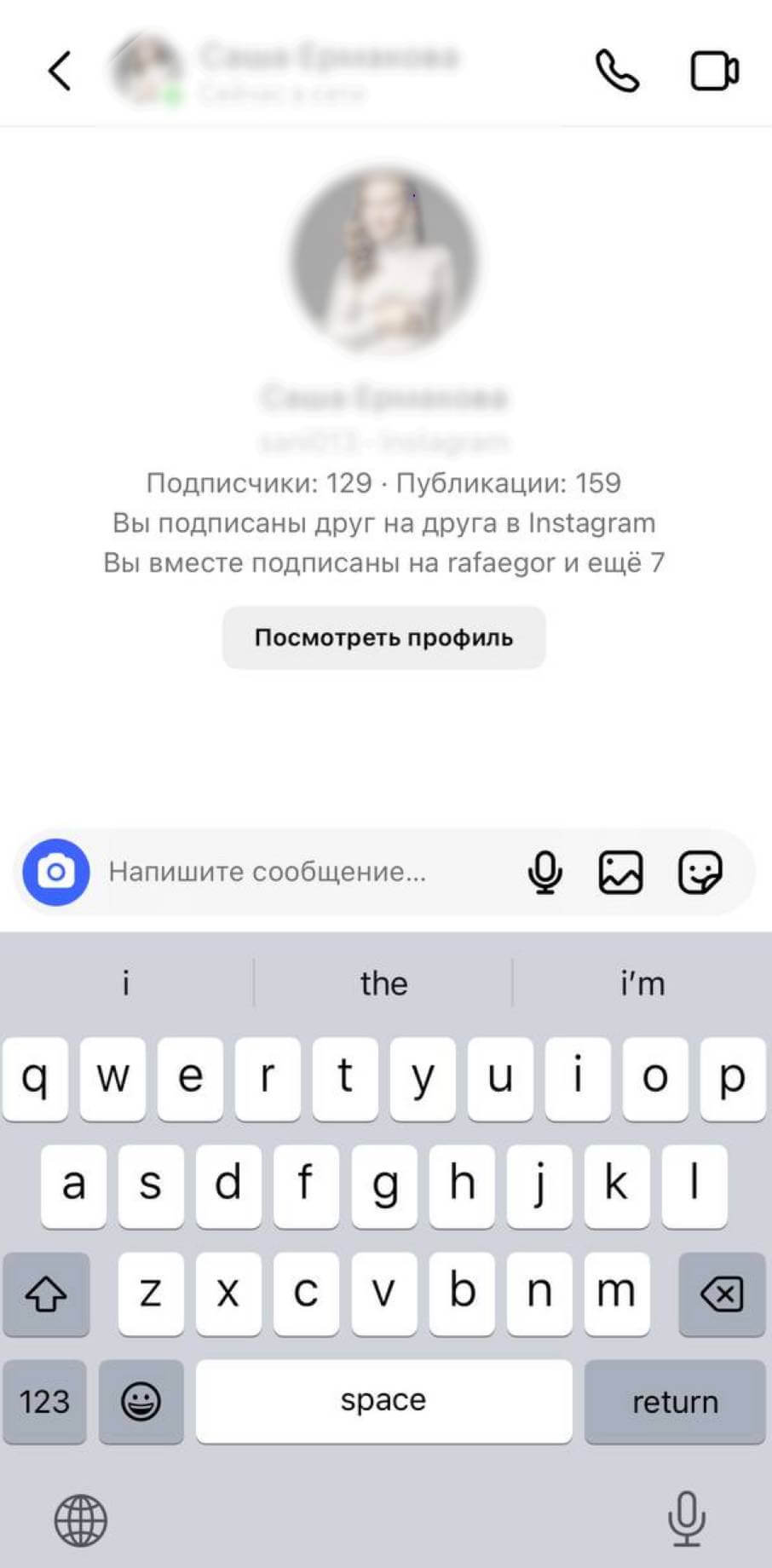
Инструкция по пользованию Директом следующая:
- Нажмите на символ Direct, расположенный в верхнем правом углу. Откроется вкладка личных сообщений, где будут отображены все диалоги.
- Чтобы написать кому-то нажмите на изображение листа с карандашом, выберите нужного человека, а затем кликните на «Написать в чате».
- Откроется диалог с пользователем, где Вы можете написать текстовое сообщение, голосовое, фото, видео или документ. Инстаграм не запрещает переписываться с людьми, на которые Вы не подписаны, однако в таком случае требуется одобрение на диалог.
В приложении можно отследить, прочёл ли пользователь Ваше сообщение. Под ним будет написано «Просмотрено». Иногда отображается и то, когда человек увидел его.
Как прикрепить ссылку в Direct?
Если требуется отправить сообщение с активной ссылкой, необходимо зайти в Директ (кликнуть на его значок вверху справа). Далее, нужно нажать на значок в виде листика с карандашом и выбрать получателя из предложенного списка или же, найти его самостоятельно, введя данные в строке поиска. Для отправки ссылки её необходимо заранее скопировать и вставить в «тело» сообщения. После отправки она автоматически станет активной, высветится синим цветом. Аналогично загружаются метаданные ссылки и превью.
Отправка сообщений с компьютера
Чтобы зайти с компьютера в личные сообщения в Инстаграме, можно использовать официальное приложение, браузер, расширение для браузера либо мобильную версию, установленную с помощью эмулятора Андройда. Не так давно он стал доступен и в онлайн-версии.
Самый простой вариант: открыть в браузере Инстаграм, войти в профиль, нажать на значок в виде летающего бумажного самолётика. Далее необходимо:
- выбрать диалог из существующих или на символ «отправить сообщение» (в последнем случае нужно будет нажать на пользователя, чтобы написать ему);
- на главном окне появится переписка со всеми отправленными и полученными СМС.
Если сообщение не отобразятся, проверьте интернет-подключение. Заметьте, что с ПК можно не только читать СМС, но и отправлять их. Сделать это можно в открывшемся окне. Нужно кликнуть на поле «Напишите сообщение» и ввести нужный текст. Здесь же Вы можете отправлять смайлики, голосовые записи, фотографии и видео, ссылки на конкретные посты и страницы других пользователей. Если требуется отправить файл, выбрать его можно из памяти устройства.
Как отправить голосовое сообщение?
Отправка голосовой записи – это несложно. Нужно зайти в Директ, нажав на соответствующий значок. После этого необходимо выбрать то, кому требуется послать голосовое сообщение. Затем нажмите на символ микрофона. Его Вы найдёте возле поля для ввода текста. Заметьте, палец нужно удерживать до тех пор, пока Вы не надиктуете послание. После того, как Вы отпустите значок, сообщение автоматически будет отправлено получателю.
Разработчиками предусмотрена возможность удаления записанных, но ещё не отосланных сообщений. Для этого необходимо удерживать пальцем файл и провести его влево или же, не отпуская микрофон, нажать на символ корзины.
Преимущества использования голосовых сообщений при общении:
- Экономия времени. Вы передаёте важную информацию, рассказываете историю и т.д. в кратчайшие сроки. Написание текста заняло бы больше времени.
- Практичность. Когда необходимо срочно написать человеку, записать голосовое можно, не держа телефон в руках.
- Эмоции и интонация. Прочитав текст, человек не всегда может понять его посыл. Возможность записывать голосовые позволяет показать собеседнику, что Вы спокойны, грустны или в хорошем настроении.
Настройка уведомлений Директа в Инстаграме
Над системой уведомлений замечательно поработали разработчики Instagram. Ею без труда можно управлять через эмайл либо SMS. Чтобы их настроить, требуется:
- нажать на 3 горизонтальные полоски в верхнем углу справа при просмотре своего профиля;
- тапнуть на настройки, находящиеся внизу;
- выбрать из высветившегося меню пункт «Уведомления».
Пользователь может:
- включить или отключить уведомления приложения;
- выбрать подходящий для себя способ оповещения (Push-уведомления, СМС или электронная почта);
- круг подачи уведомлений, который может быть от всех пользователей или конкретной группы.
Здесь установите параметры, которые будут удобны. Система будет функционировать по определённому алгоритму, учитывая Ваши предпочтения.
Как начать видеочат?
Инстаграм за время функционирования стал универсальным приложением, который удовлетворяет социальные потребности больше миллиарда людей. Постепенно разработчики интегрировали в него прямой и групповой видеочаты. Чтобы воспользоваться представленной функцией приложения, необходимо открыть Директ. Сделать это можно 2 способами: нажать на знак Direct или провести пальцем влево. Далее:
- Откройте диалог, с которым хотите пообщаться по видеосвязи или создадите новый. Для этого нажмите на знак карандаша справа наверху и выберете нужного пользователя.
- В открытом диалоге тапните на символ камеры, расположенный в верхней части экрана с правой сторону. Если Вы впервые пользуетесь этой опцией Инстаграма, приложение запросит разрешение на использование камеры. После его получения, начнётся вызов. Когда пользователь, которому Вы звоните, поднимет трубку, запустится видео.
Заметьте, что пообщаться по видеосвязи можно не только с одним пользователем, но и несколькими. Для этого была разработана специальная функция. Видеозвонок разрешено проводить одновременно с 4-мя людьми. Это отличная возможность обсудить предстоящее мероприятие, проект и т.д. Временных ограничений для общения в данном случае нет, поэтому не придётся укладываться в установленные рамки.
Быстрые ответы в Директе
Представленная опция особо выгодна для бизнеса. Чтобы удобно переписываться с клиентами, можно воспользоваться быстрыми ответами. Это своеобразные заготовки сообщений. Функция удобна, но доступна только бизнес-аккаунтам.
Предварительно нужно подготовить универсальные ответы на распространённые вопросы, которые задают потенциальные клиенты. После того, как продумаете их, зайдите в свой аккаунт и настройки.
Как использовать быстрые ответы в Директе?
Для использования быстрых ответов в Директе на Instagram:
- Откройте свой аккаунт и перейдите в настройки.
- Выберите вкладку "Компания" и затем "Сохранённые ответы".
- Напишите полный текст сообщения и укажите слово для быстрого ввода.
- Нажмите на галочку в верхнем углу, чтобы сохранить результат.
Вы можете редактировать или удалить быстрый ответ, кликнув по нему один раз. Эта опция удобна для ответов на часто задаваемые вопросы, благодарностей и участия в акциях.
Ограничения в Директе:
В Инстаграме, особенно в Директе, есть ограничения, которые важно учитывать:
- Не рассылайте много сообщений с одним текстом – это может быть расценено как спам.
- Максимальное количество сообщений в сутки: 100 для подписчиков и 50 для новых пользователей.
- Одно сообщение не должно превышать 500 символов, разделите длинные тексты.
- Запрещено отправлять агитационные сообщения, контент 18+ и жестокий контент, что может привести к блокировке.
Вы можете заблокировать входящие сообщения от пользователей и настроить фильтры для большей безопасности.
Директ в Инстаграме для бизнеса:
Директ в Инстаграме – не только для общения, но и для бизнеса. Он полезен для общения с клиентами, продаж и рассылок. Освоив этот инструмент, можно получить значительные преимущества.